
Use measurement‑based advanced search to find imaging reports that include specific size or numeric details, such as the size of a lesion or nodule. This helps you locate reports that match clear measurement criteria instead of reviewing results one by one.
Use measurement search when you want to:
- Find reports that mention a specific size (for example, greater than or less than a value)
- Narrow results using objective numeric information instead of keywords alone
- Focus on reports that meet clearly defined criteria
Steps to use Advanced Search with Measurements
Sign in to mPower using a supported web browser.
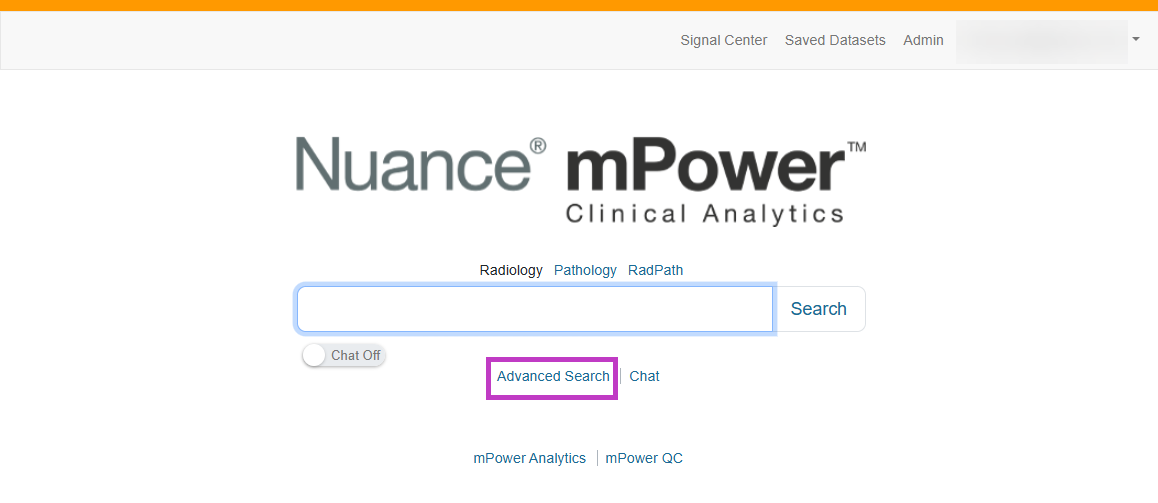
On the home page, select Advanced Search below the Search box.
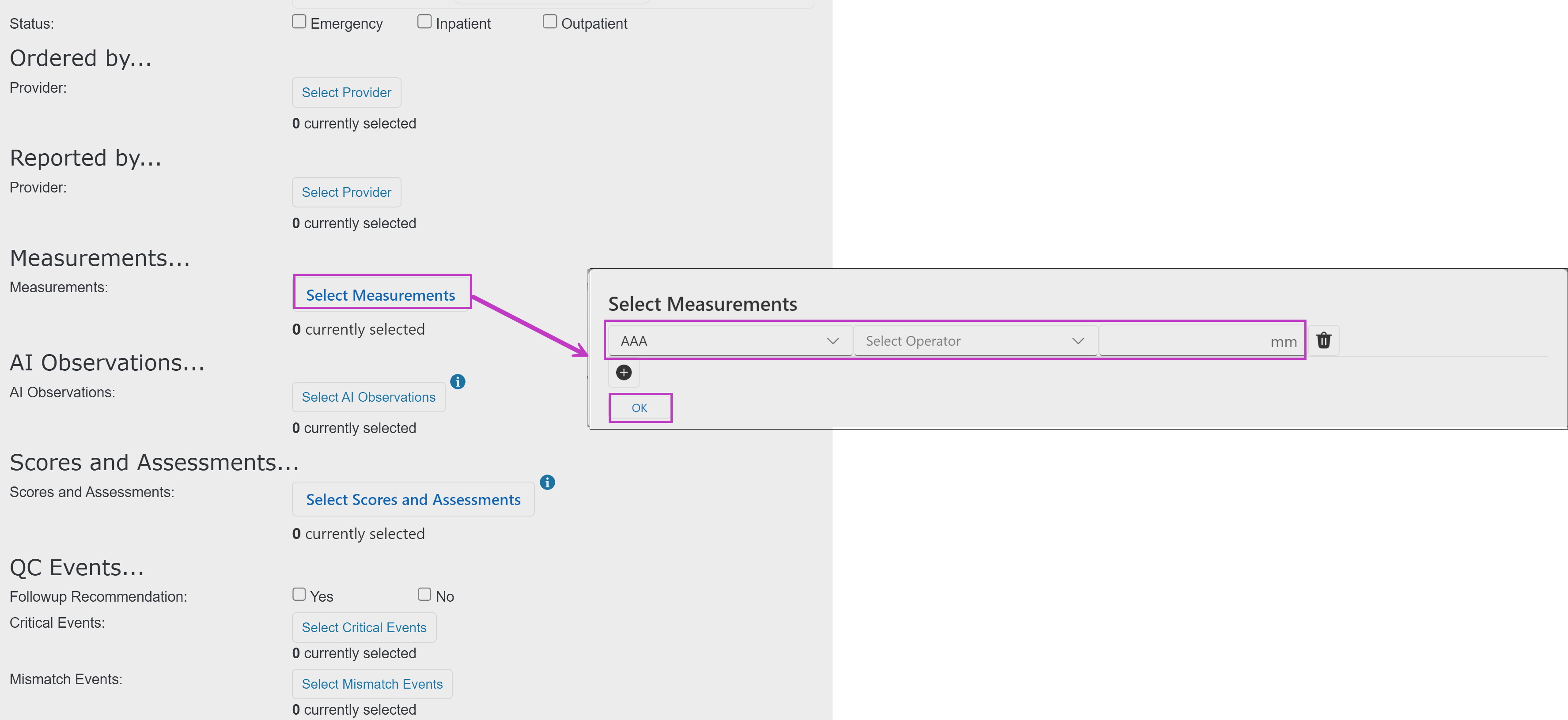
In Advanced Search, go to the Measurements section.
Select Select Measurements.
Choose a measurement type (for example, lesion or nodule).
Select a comparison option:
- Equal to
- Greater than or equal to
- Less than or equal to
Enter the measurement value.
Select OK to return to the Advanced Search page.
Review the selected measurement and any other filters.
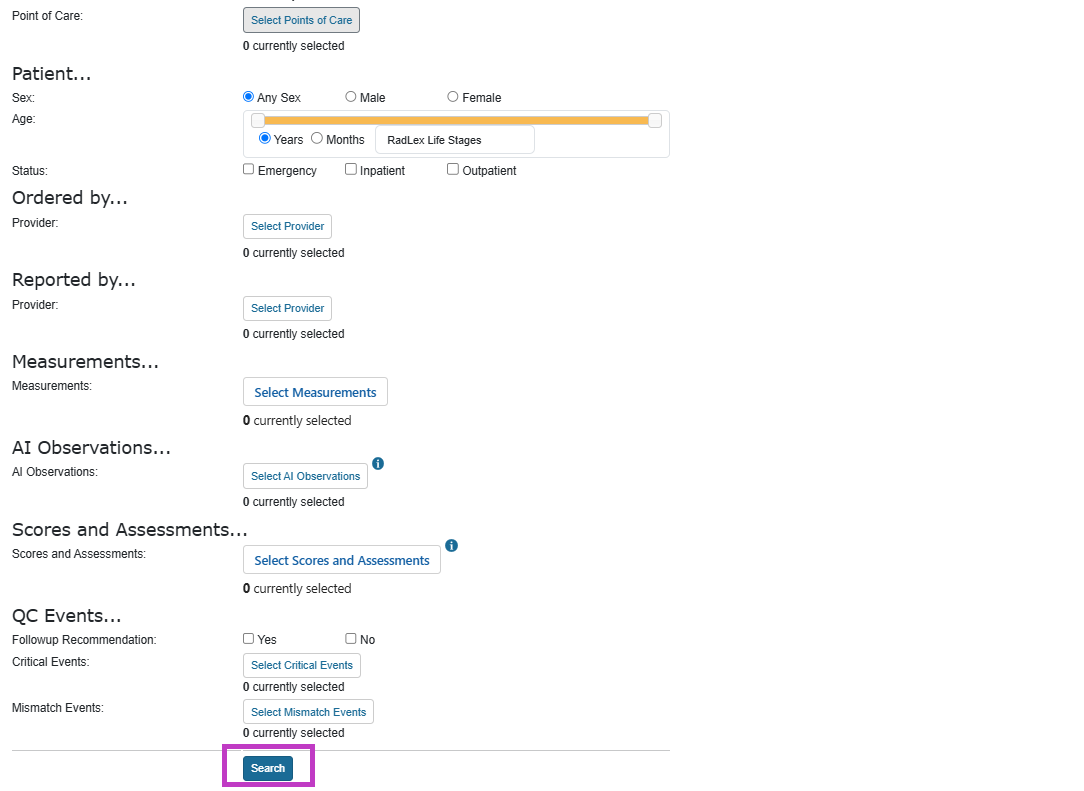
Select Search.
Search for a range of measurements
To find reports within a size range:
Choose the Between option.
Enter the minimum and maximum values.
Select OK and then select Search.

Tip
- Start with a broader range, then narrow results if needed.
- Combine measurement filters with keywords for better accuracy.
- If no results appear, adjust the measurement values or remove extra filters.
Next up: Using scores and assessments
Learn how to filter reports using clinical scores and assessments to identify risk levels and key findings. Let's go.