
Use a basic search to quickly find reports using simple keywords.
Steps to run a basic search
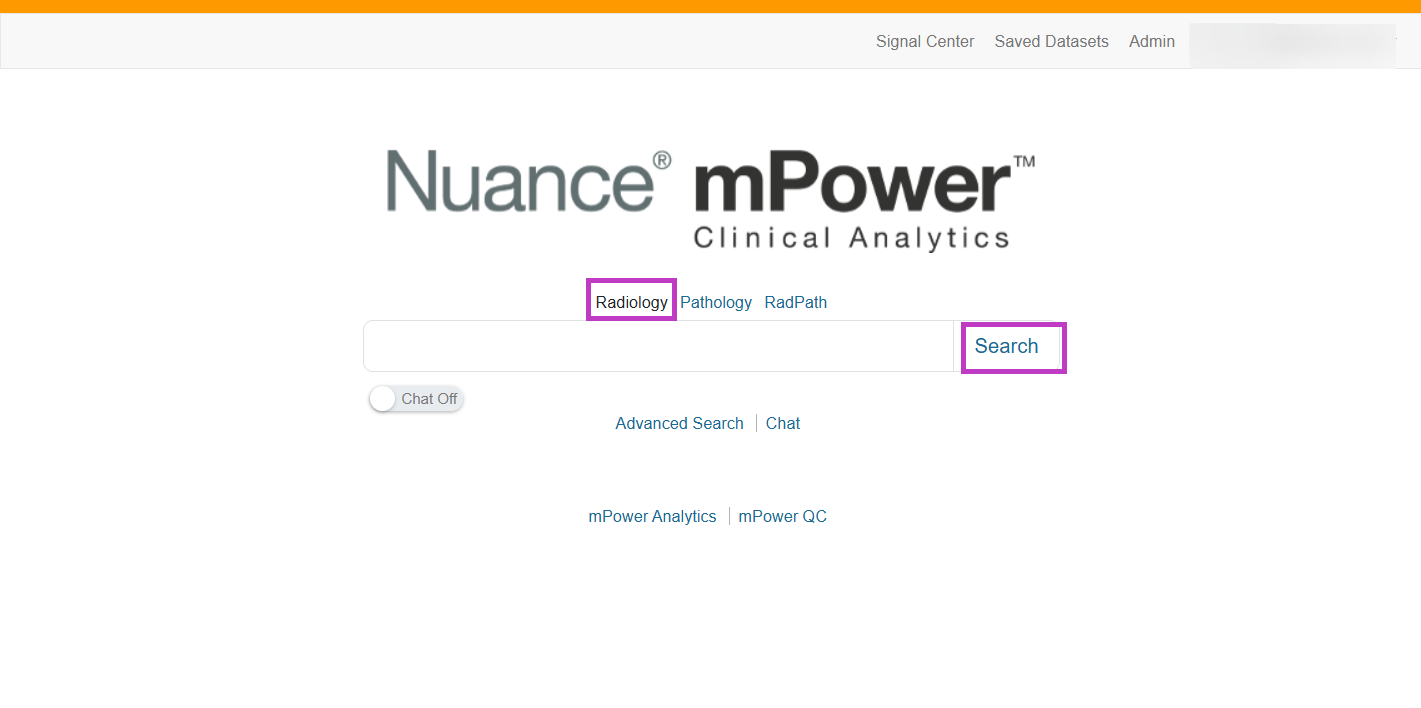
Sign in to mPower Clinical Analytics.
Select the correct database for your search (Radiology, Pathology, or RadPath). Radiology is selected by default.
In the Search box, enter one or more keywords.
Select Search or press Enter.
Note
If you leave the Search box empty and select Search, mPower returns all indexed reports for the selected database.
For example:
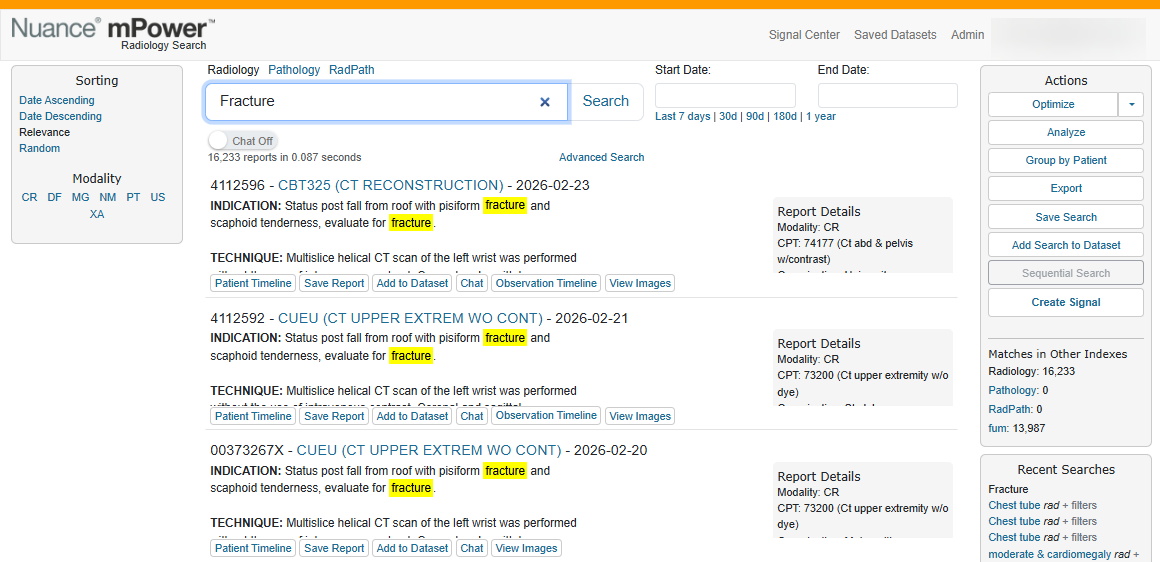
Search for fracture
Results include reports that contain fracture in the report text
Review search results
After you run a search, results are displayed by relevance.
You can:
- View the number of matching reports and search time
- Select the report to expand and view in more detail.
- Hover over a result to preview report text
Tip
Use Advanced Search to filter results by modality, date range, provider, or other criteria.
Next up: View and understand search results
Learn how to interpret search results, preview reports, and quickly open the full report view to find the information you need faster. Let's go