
Sequential Search allows you to find patients who have two specified imaging studies within a defined period of time. Sequential searches help you find patterns across studies rather than reviewing reports one at a time.
Use sequential searches when you need to:
- Find patients with follow‑up studies after an initial exam
- Identify cases where findings occur within a defined time window
- Analyze clinical progression across multiple related reports
Steps to run sequential search
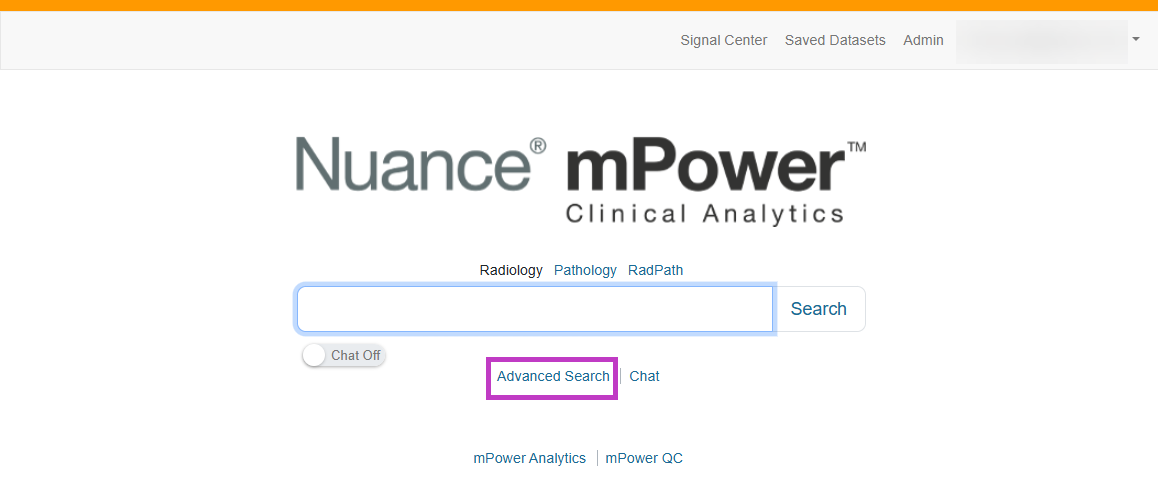
From the mPower home page, select Advanced Search.
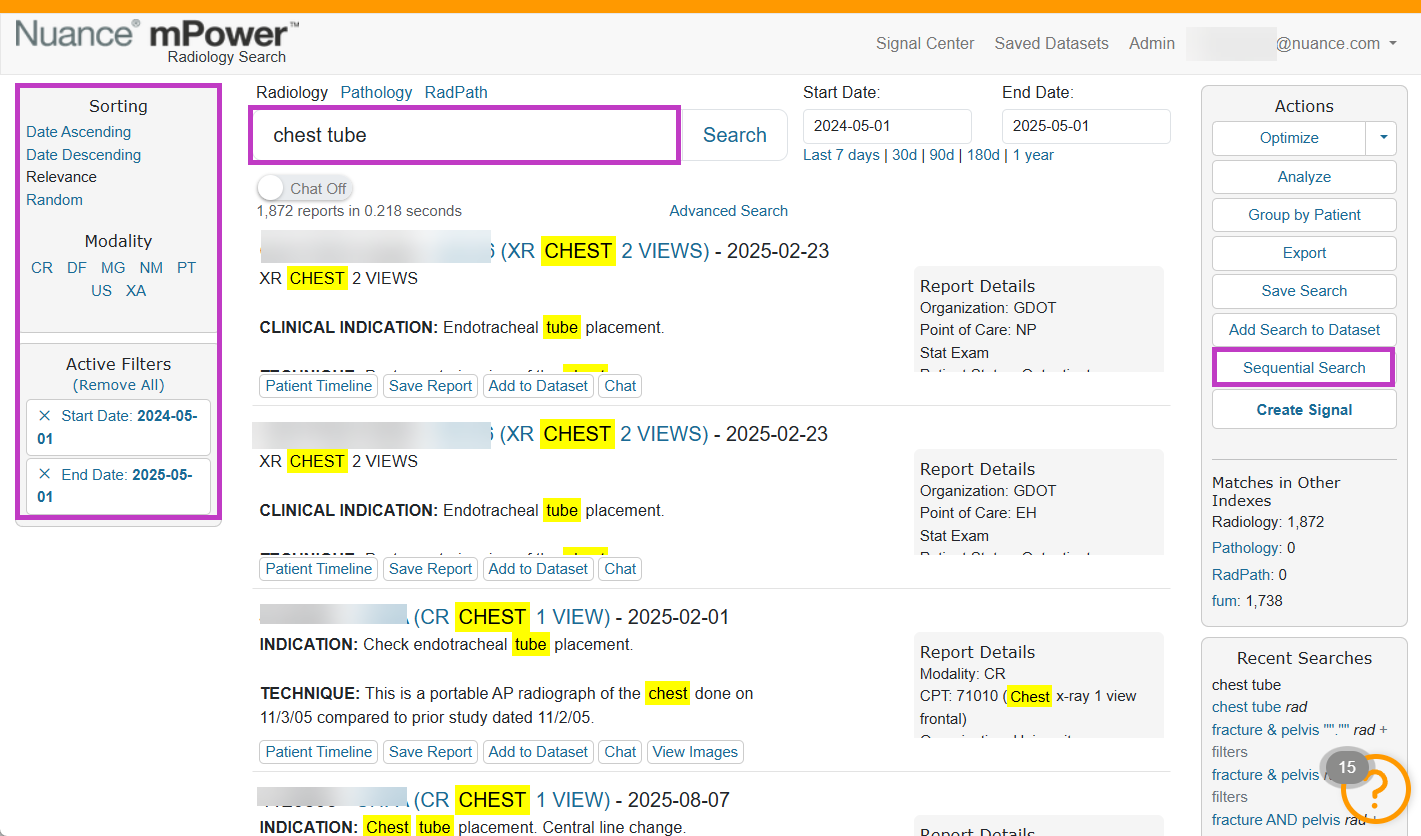
Enter keywords or criteria for the first event.
Apply any relevant filters, such as modality or date range.
Select Add Sequential Search.
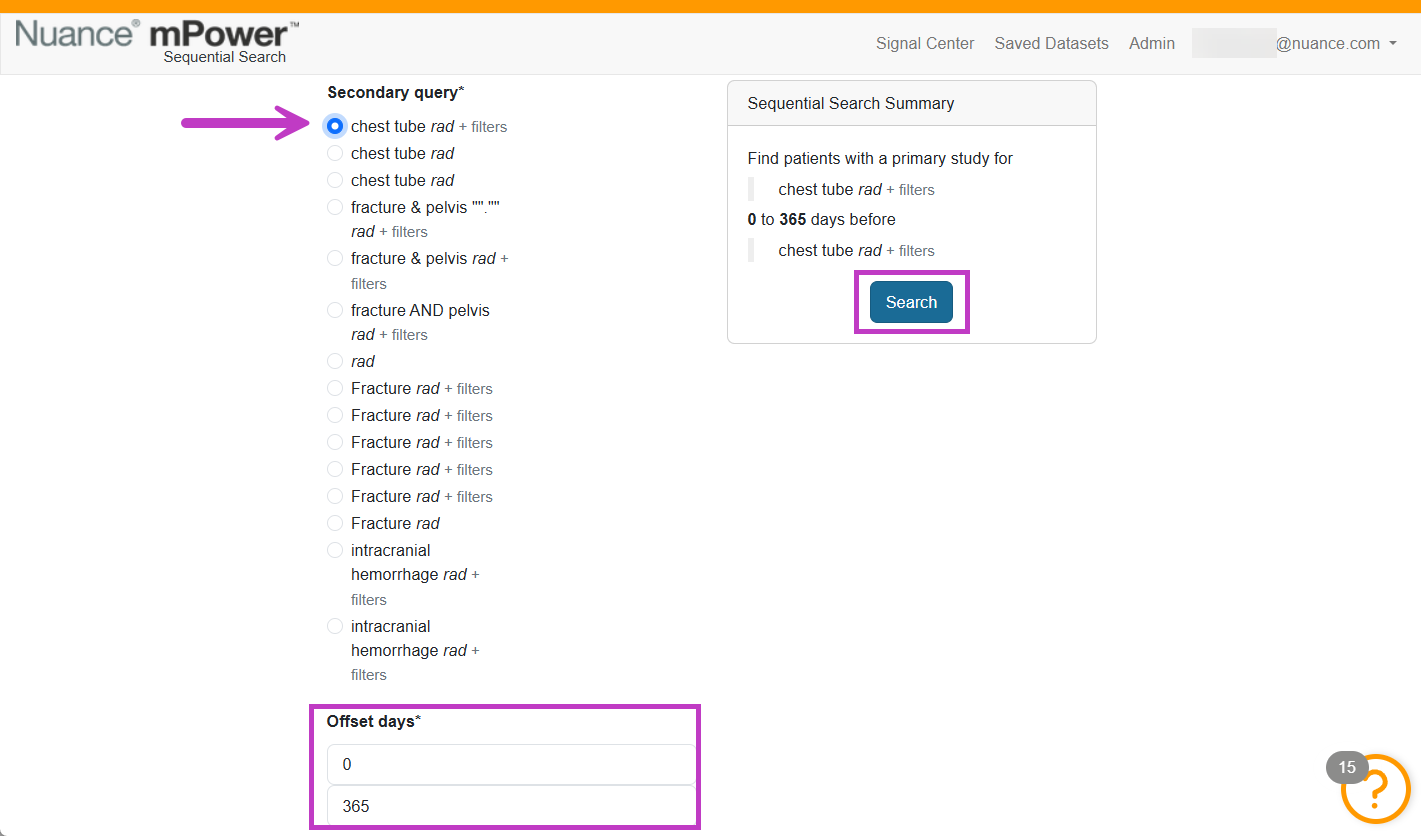
Define the second condition using keywords or filters.
Specify the time relationship between the two conditions (for example, within a certain number of days).
Select Search.
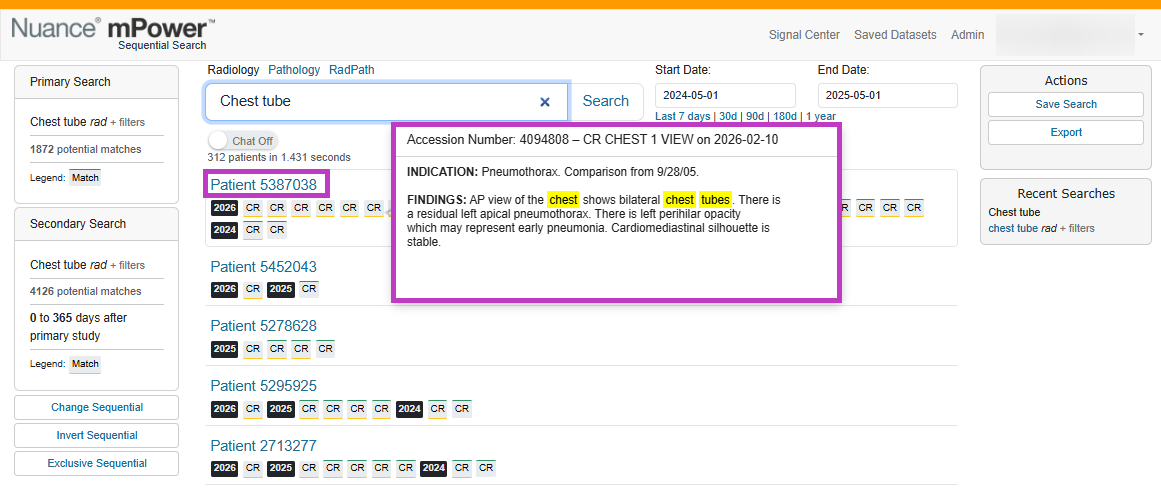
Select the Patient/MRN link to open their Patient Jacket.
Note
The patient’s MRN is visible only if you have the Can view PHI (MRN) permission; otherwise you see just the word Patient with a link to that patient’s jacket.
Hover over any of the patient’s reports to show the report’s content. Green lines above the report indicate it matched the Primary Query. Orange lines below the report indicate it matched the Secondary Query. Reports with both Green and Orange lines matched both queries.
Tip
- Start with simple conditions before adding time constraints.
- Use clear criteria for each step to avoid overly narrow results.
- Combine sequential searches with filters for greater precision.
Next up: Set up signal notifications
Learn how to set up signal notifications to automatically alert you when new reports match your search criteria. Let's go