
Try it
Create and manage workflows directly from a chat or channel within Microsoft Teams.
Note
Workflows app is currently not supported within private channels.
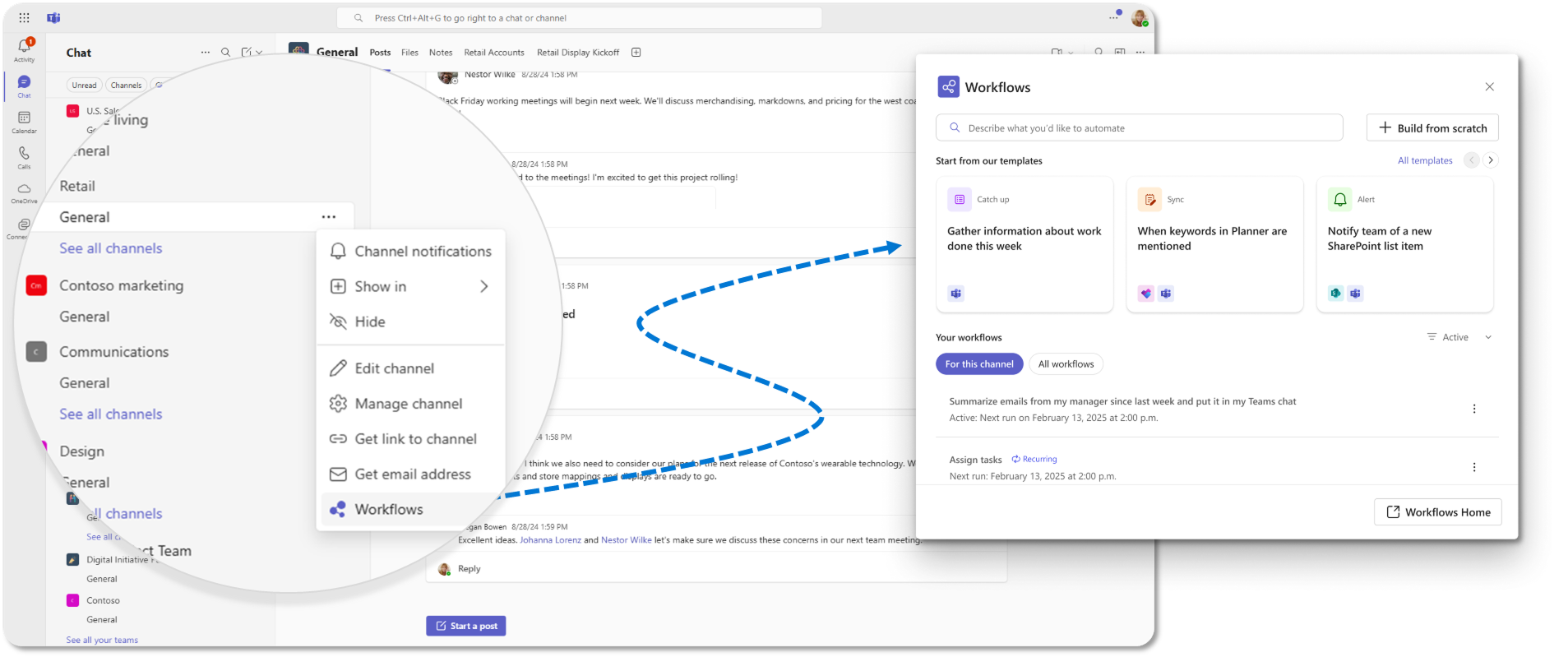
Create a workflow
Navigate to any chat or channel you want to set up a workflow for.
Next to the chat or channel you want to add to the workflow, select More options (...).
Select Workflows.
Choose how you want to begin. You have three easy options:
Use a template:
- Select a template from the home page carousel or select All templates to browse the full catalog. You can also use the search bar to find templates by typing a few keywords.
Build from scratch:
- Select + Build from scratch at the top-right corner. Choose a trigger (what starts the workflow) and an action (what the workflow does). You can change these later using the drop-down arrows.
Describe your workflow:
- Use the search bar to type a short description like “Send a weekly reminder at 9AM to my team.” Then, select the AI suggested workflow to customize.
Fill out any required fields and follow the prompts.
When you're ready, select Save to create and activate your workflow.
View your workflows
Navigate to any chat or channel you want to set up a workflow for.
Next to the chat or channel you want to add to the workflow, select More options (...).
Select Workflows.
Go to Your workflows section to see workflows you have created for the chat or channel.
Tip
You can select the All workflows filter at the top of the section to see all workflows you have created.
Manage your workflows
Navigate to any chat or channel you want to set up a workflow for.
Next to the chat or channel you want to add to the workflow, select More options (...).
Select Workflows.
Go to Your workflows section to find the workflow you want to manage.
Select More actions (...) or select the workflow directly to open its details page.
Edit your workflow
- Select Edit to update triggers, actions, or any fields. When done, select Save to apply changes.
Turn your workflow ON or OFF
- From the details page or more actions menu, select Turn on or Turn off to enable or disable the workflow.
Add or remove co-owners
- Scroll to the Owners section on the details page. Type a name to add a co-owner or select Remove next to an existing one.
View or delete your workflow
- Select Details to view more info or select Delete to permanently remove it. Confirm deletion when prompted.