
Learn how to schedule recurring messages in a chat or channel so you can send reminders to your team, set up daily stand-ups, and more.
Try it!
Start with a template
Open Workflows from any entry point.
Open the Templates page.
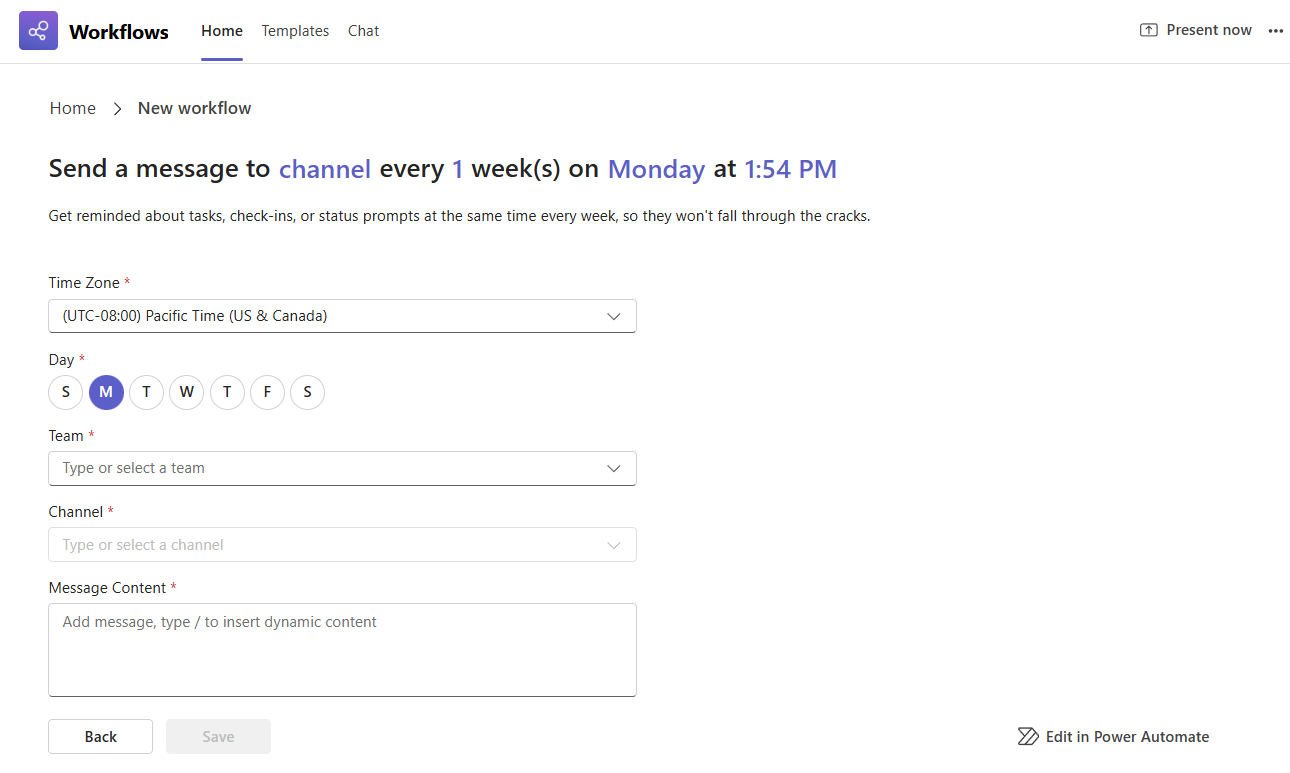
Select the template Automate weekly reminders and updates in a channel.
Step 1: Set up the schedule of your message
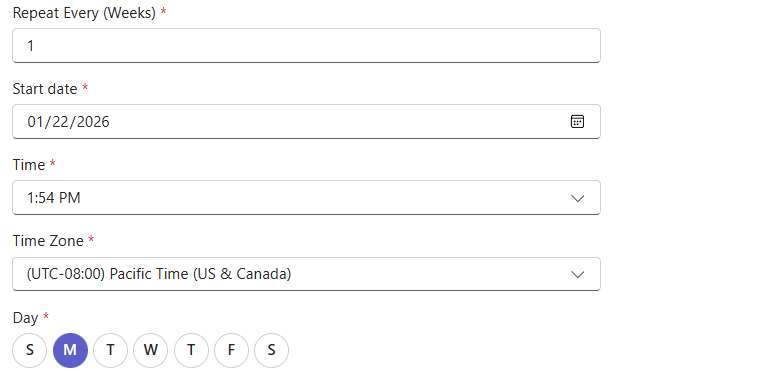
Choose how often you want the message to send. (The template is defaulted to send the message every week.)
Tip
To change the frequency of how often the message is sent out, put a 2 to send the message every other week, put a 3 to send it out every 3 weeks and so on.
Choose a Start date for when the messages will start being sent out.
Edit the Day and Time you want the message to be sent out.
Step 2: Set up where to send your message
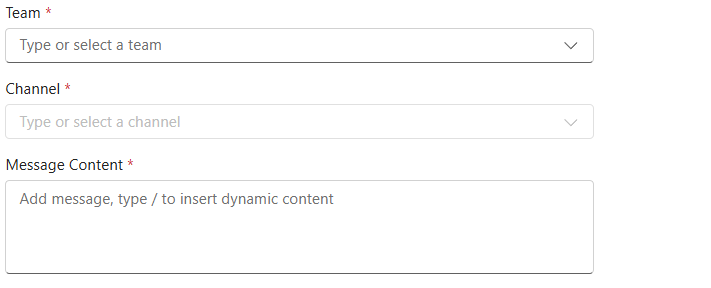
- Select the Team and Channel to send your message to.
- Add your customized message in the Message content that will be sent out.
Step 3: Complete your workflow
When you're done, select Save to create your workflow.
Tip
After your workflow is created you will land on the details page for the workflow. Here you can change the name, add co-owners, and more.