Use accessibility tools in Teams to remove barriers to class meetings and prioritize inclusion.
Join meetings with a screen reader
- Press Ctrl+4 to open to the Calendar
 view.
view. - Press the Tab key repeatedly until you find the meeting you want, and press Enter. This opens the meeting details view.
- Press the Tab key again until you hear "Join meeting," and press Enter.
- If you do not need to make changes to the video
 or audio
  , press Enter.
 - To change the video and audio before you join, press the Tab key until you hear "Enable video" or "Enable microphone," and then press the Spacebar to turn the option on or off.
- When you are finished, join the meeting by pressing Shift+Tab until you hear "Join the meeting." Then press the Spacebar.
Note
Get more guidance on using a screen reader for remote learning with Teams.
Turn on live captions
Captions convert the class discussion into text that displays on the screen in real time and let's you know who is speaking.
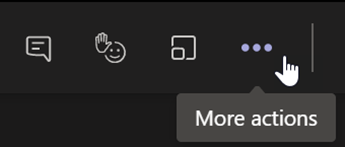
- Select More actions
 .
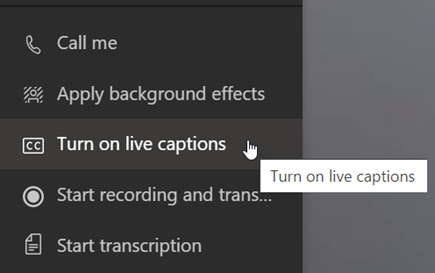
. - Select Turn on live captions.
- To stop, choose More actions
and select Turn off live captions.
Tip
Instruct everyone to speak clearly and slowly to get captioning that is more accurate.
Raise your hand and live reactions
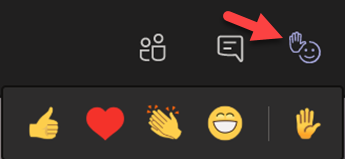
Virtual hand raising and reaction emoji let you and your students give non-verbal cues.
1. Click Raise your hand on the meeting controls signal you have a question or comment.
2. Choose an emoji to convey a feeling or response.
Blur your background
A blurred background focuses attention on the speaker and what they are saying.
- Select More actions
on the meeting controls.
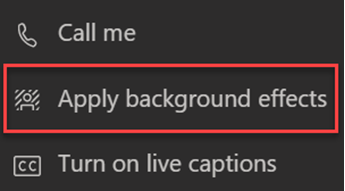
- Choose Apply background effects
 .
. - Choose Blur, then Preview, and click Apply and turn on video.
Note
To blur your background before class, join your meeting. On the pre-join screen, turn on your camera. Select Background filters > Blur.

Create a transcript
Turn on transcription to share with students.
- On the meeting controls, choose More actions
.
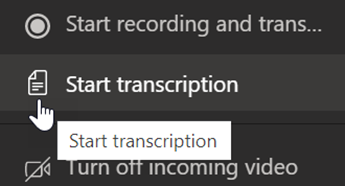
- Select Start transcription.
- When you're done, choose More actions
, then select Stop transcription. Your meeting transcript will save to SharePoint.