

Use the meeting lobby in Teams meetings to keep people from directly entering a meeting when they join. Organizers, co-organizers, and presenters will be notified when people enter the lobby and can let them into the meeting.
In this article
Lobby settings
Each meeting defaults to the lobby settings set by your IT admin but you can change them before or during the meeting. You might not be able to change some settings if your meeting uses a template or sensitivity label.
Choose who can bypass the lobby
As the meeting organizer, you get to decide who gets into your meetings directly, and who should wait for someone to let them in.
If you choose to have people wait, you (and anyone else allowed to admit people) will see a list of people in the lobby. From there you can choose whether to admit or deny them.
| Who can bypass the lobby? | What happens | Recommended when... |
|---|---|---|
| Only organizers and co-organizers | As the meeting organizer, you and any co-organizers can get into the meeting directly. Everyone else will wait in the lobby. | You want everyone else to wait in the lobby until you're ready to admit them. |
| People who were invited* | Anyone who receives the invitation, including those to whom it is forwarded, will join the meeting directly. People without a Teams account won't bypass the lobby. Additionally, distribution lists up to 10,000 users are supported. If you don't want people to forward the invite to others, turn off Allow Forwarding in the invitation. |
You want a specific, limited group of people who were invited via their Teams accounts to join the meeting directly, and everyone else to wait in the lobby. |
| People in my org | Only people within your org can get into your meeting directly. Everyone else will wait in the lobby. | You want all guests and external people to wait in the lobby so you can approve them one by one. |
| People in my org and guests | People in your org and people with guest access can get into your meeting directly. | You want all external people (anyone outside your org, except guests) to wait in the lobby so you can approve them one by one. |
| People in my org, trusted orgs, and guests | Anyone from your organization and organizations with which your IT admin has set up a connection, or anyone joining as a guest, will be able to bypass the lobby. | You want some external people (e.g., people joining without a Teams account and people from organizations with which your IT admin did not set up a connection) to wait in the lobby so you can approve them one by one. |
| Everyone | Anyone who has access to the meeting link gets into the meeting directly, including people who call in. Depending on the meeting policy set up by your IT admin, people joining without a Teams account,people from untrusted organizations, and people dialing in may be placed in the lobby until someone from your organization or a trusted organization joins the meeting, even if the Everyone option is selected. |
You don’t want anyone to wait in the lobby. You want everyone to be able to join your meetings without specific approval. |
* For channel meetings, all channel members are considered invited to the meeting and hence will be able to bypass lobby.
Change lobby settings
You can change lobby settings before, during, or after a meeting (in the case of a meeting series). The changes will only apply to the meeting you change them in unless the meeting is part of a series. Then, changes will be applied to all future meetings in that series. To change default lobby settings, contact your IT admin.
Before a meeting
Select Calendar
 in Teams.
Select an event.
Select View event
 .
.- To edit a meeting series, select Edit series.
Select Options
 .
.In Meeting access
 :
:- Choose an option from the Who can bypass the lobby? dropdown menu.
- Turn the People dialing in can bypass the lobby toggle on or off.
- Choose who can let people into the meeting from the Who can admit from the lobby dropdown menu.
Select Apply.
During a meeting
If you change lobby settings during a meeting, people waiting in the lobby will still be there.
Select Controls
 > View more options in your meeting controls.
In Meeting access
:- Choose an option from the Who can bypass the lobby? dropdown menu.
- Turn the People dialing in can bypass the lobby toggle on or off, if available.
- Choose who can let people into the meeting from the Who can admit from the lobby dropdown menu.
Select Apply.
Lobby notifications
People managing the lobby will receive notifications that people are waiting in the lobby. In the notifications, select View lobby to go right to the lobby or Mute these notifications
 to turn the notifications off.
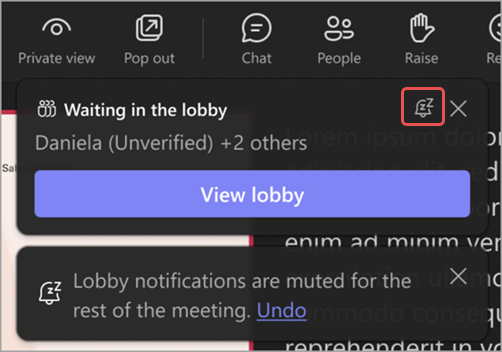
Select Undo to turn the notifications back on.
Manage the lobby
During a meeting, people you designated to manage the lobby can admit or deny access to the meeting.
Who can manage the lobby
By default, the meeting organizer, co-organizer(s), and presenter(s) can manage the lobby. If you’re the organizer, choose which of those roles can manage the lobby during that specific meeting. You can also make someone a co-organizer or presenter by changing their meeting role.
To change who can manage the lobby:
Select Calendar
in Teams.Select an event.
Select View event
.- To edit a meeting series, select Edit series.
Select Options
.In Meeting access
, choose who can let people into the meeting from the Who can admit from the lobby dropdown menu.Select Apply.
Admit or deny participants
During the meeting, people managing the lobby can see a list of participants waiting to get into the meeting and choose whether to admit or deny them.
To admit or deny participants:
Select People
 in your meeting window.
Under Waiting in the lobby:
- Select the check mark next to someone’s name to admit them.
- Select the X next to someone’s name to deny them.
- Select Admit all, when available, to let everyone in to the meeting, who are listed in that group of participants from the lobby.
Manage external bots in the lobby
When Teams identifies external bots waiting in the lobby, people managing the lobby get aditional information and assistance to decide whether to admit them or deny them.
- Waiting: Registered bots appear here. This section also includes other people waiting in the lobby who have not been identified as bots, based on the meeting's lobby settings. This section will have an Admit All option to bulk admit all participants from this section. This section is present only if there are registered bots or people in the lobby.
- Suspected threats: Unverified bots that Teams detects based on behavioral and infrastructural patterns appear here. This section has a Deny All option to bulk reject all participants from this section. If you do not intend to admit any identified bots, then you may choose to ignore this section. This section is present only if there are unverified bots or any other risks detected in the meeting.
Teams also adds friction for bots that it identifies:
- The in-meeting notification when someone enters the lobby won't show an Admit option if that participant is identified as a bot.
- Selecting Admit all, in the Waiting section of the meeting lobby, shows a confirmation message if identified bots are waiting in the lobby.
- Admitting an identified bot one at a time also shows a confirmation message. This message reminds you that the participant that you are trying to admit is an external bot and may record or transcribe the meeting.
- In the confirmation message, you can mark the participant as human if you think Teams identified them incorrectly. This changes how that participant is represented only in that meeting. Teams uses this signal to improve detection accuracy.
Lobby chat
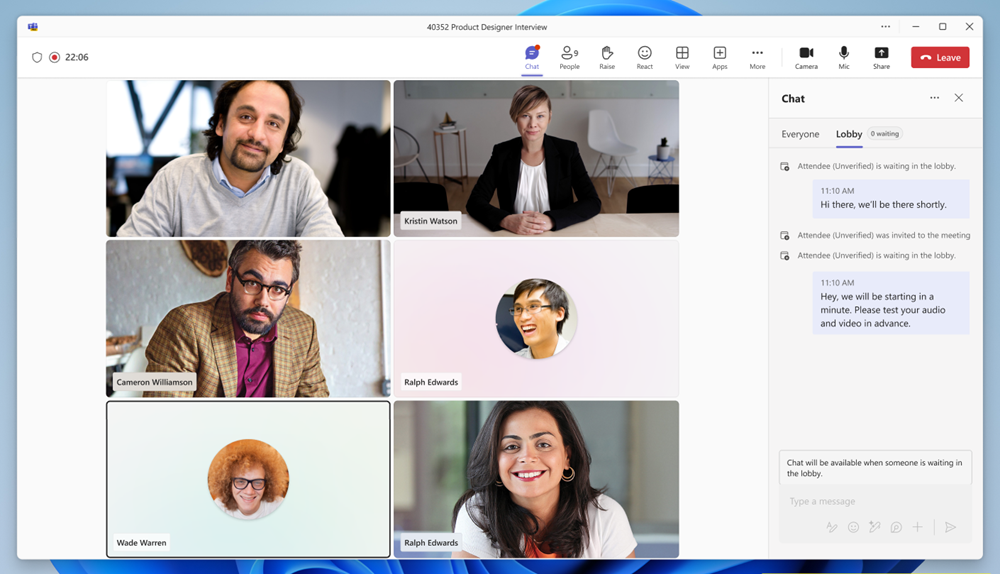
Send chat messages to attendees waiting in the lobby to communicate delays, waiting times, or any prerequisites or tasks to complete before joining. Organizers can view and send messages in the lobby chat when at least one person is in the lobby. If the lobby is empty, lobby chat won't be available.
To view and send messages in the lobby chat:
- Select Chat
 in Teams. Open the meeting chat and select Lobby.
 - Select Chat
in your meeting controls. In the chat pane, select Lobby.
Organizers can view all lobby chat messages before, during, and after the meeting.
Note
- The Lobby option only appears while someone is waiting in the lobby.
- Lobby chat doesn't support the following: Message reactions, replies, @mentions, emoji, GIFs, stickers, Rewrite with Copilot, Loop components, Actions and apps
 functionalities (add an app, attach a file, record video clip, etc.).
Attendee view
When a new message is sent in the lobby chat, the lobby chat pane will open automatically for attendees on the pre-join screen, ensuring no one misses a message. They can also select Lobby chat
on the pre-join screen to view messages.
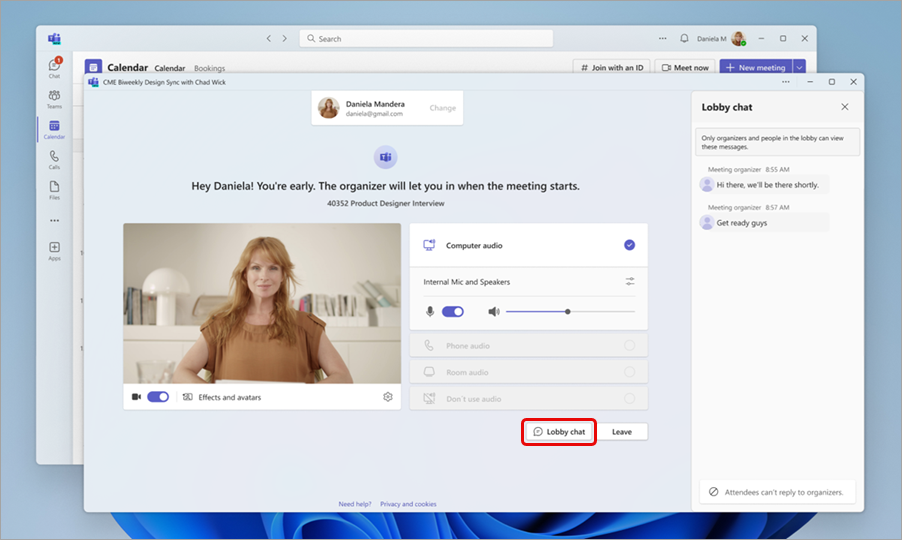
Attendees won't be able to send replies or reactions and will only see messages sent while they were in the lobby. Any messages sent before they joined won't be visible to them. Lobby chat messages don't appear in the main meeting chat and aren't accessible to attendees after they join the meeting.
Turn off the lobby for a meeting
If you want everyone to join your meeting directly, set Who can bypass the lobby? to Everyone. This change will apply to that meeting and future meetings if it's part of a meeting series. Contact your IT admin if you want to change this setting for all the future meetings you organize.
Note
If anonymous participants join first, they’ll wait in the lobby. They'll be let into the meeting automatically after someone from your org, a trusted org, or a guest user joins. Contact your IT admin to allow anonymous participants to start meetings.
You can also remove people or lock your meeting.
To remove people from the meeting:
- Select People
in your meeting window.
- Hover over the name of the person you want to remove.
- Select More options
 > Remove from meeting.