
Important
Microsoft Copilot uses AI and may make mistakes, misinterpret instructions, or be deceived by malicious hidden instructions. Please monitor results closely and review important details, especially for tasks involving payments, personal information, communications with others, or changes to accounts or files. Copilot will ask for your approval or hand control back to you for sensitive actions. You are responsible for actions Copilot takes on your behalf. Using Copilot means you agree to the Terms of Use. See our Privacy Statement for more information.
Important
Microsoft Copilot Cowork for personal accounts is currently in Preview.
This information relates to a prerelease product that may be substantially modified before it's released. Microsoft makes no warranties, expressed or implied, with respect to the information provided here.
Cowork carries out tasks on your behalf. You describe what you need in natural language, and Cowork does the work, creating documents, drafting and sending email, scheduling meetings, and managing files. You review and approve sensitive actions before it happens.
Cowork is available for both work or school accounts and personal Microsoft accounts. This article helps you set up Cowork for your account type and complete your first task.
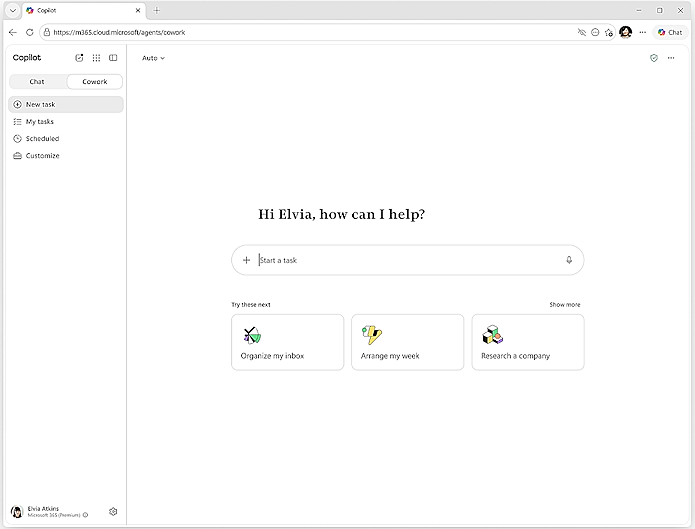
For browser-based tasks, Cowork interacts with websites in a human like way, such as clicking, scrolling, and typing. You might be able to observe the task as it runs, stop it at any time, or take control when required. Some tasks might complete quickly, while others can take longer depending on complexity. As a task runs, you might get progress updates or intermediate results. Copilot pauses and asks for your input if it needs additional approval or information.
What you can do with Cowork
- Create and edit Word documents, Excel spreadsheets, PowerPoint presentations, and PDFs.
- Draft, reply to, and send email, and manage your calendar.
- Manage your files in OneDrive.
- Research topics across multiple sources and compile the results.
- Prepare daily briefings and summaries.
- Run prompts on a schedule so recurring tasks happen automatically.
- Use Cowork anytime, any place with the Cowork mobile app.
If you sign in with a work or school account, Cowork can also post messages in Teams, search across your organization for files and people, and work with files in SharePoint.
Set up Cowork
How you get access to Cowork depends on the type of account you sign in with. In both cases, Cowork runs in your browser at m365.cloud.microsoft and in the Microsoft Copilot desktop app.
Note
Cowork is available for personal and work or school accounts with similar features.
- Cowork for personal accounts is in Preview.
- Cowork for work or school accounts is generally available. Learn more in Copilot Cowork overview.
For personal accounts (Preview)
Sign in with a personal Microsoft account that has an eligible Microsoft 365 subscription.
For work or school accounts
Make sure you have a Microsoft Copilot license, Cowork enabled in your Microsoft Copilot environment, and usage-based and Cowork billing enabled. Additional details can be found in the Learn documentation.
More ways to work with Cowork
- Start a conversation
- Take control of Cowork actions before they run
- Manage tasks and schedule prompts
Copilot Tasks is moving to Cowork
Important
The following applies to Microsoft 365 Personal, Family, Premium, and Pro licenses.
Copilot Tasks created with a personal Microsoft account will be moved to Cowork automatically over the following few weeks.
Your Tasks conversations and most of the content you've created will move with you. Some features and content will work differently in Cowork. To review what's changing, visit Updates to Copilot and the Microsoft Copilot app.