

You can parse (or deconstruct) the contents of a column with text strings that contain JSON or XML. To help illustrate how to use the Parse command, the following sample data starts with JSON and XML data entered as text fields.

For more information on importing JSON and XML, see Import data from external data sources.
Parse JSON text
JavaScript Object Notation (JSON) is a common data format, and you can import it into Excel.
To transform the SalesPerson column from text strings to a structured Record column:
Select the SalesPerson column.
Select Transform > Parse (in some versions, this is under Text Column) > JSON.
Select Record to see the values.
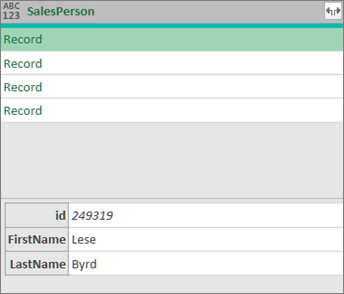
Select the Expand
 icon next to the SalesPerson column header. From the Expand columns dialog box, select only the FirstName and LastName fields, then select OK.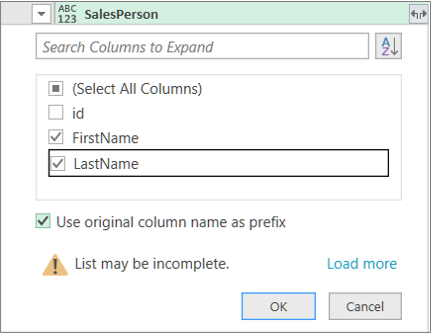
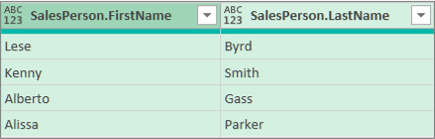
Result
Parse XML text
Extensible Markup Language (XML) is a common markup and data format, and you can import it into Excel.
To transform the Country/Region column from text strings to Table values.
Select the Country/Region column.
Select Transform > Parse (in some versions, this is under Text Column) > XML.
Select Table to see the values.
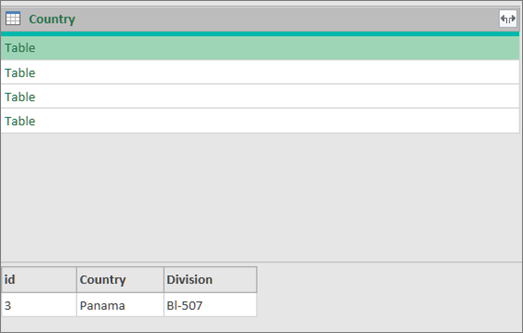
Select the Expand
icon next to the Country/Region column header. From the Expand columns dialog box, select only the Country/Region and Division fields, then select OK.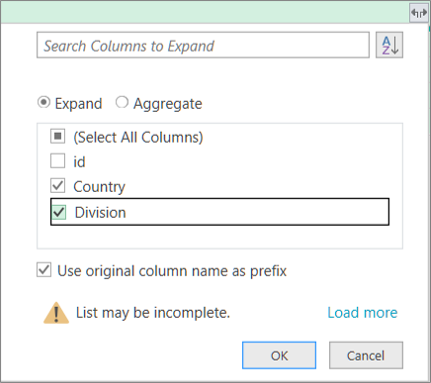
Result
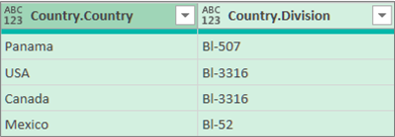
Tip With a Table, you can also select Aggregate to aggregate data in different ways, such as Sum or Count. For more information, see Aggregate data from a column.