

You can use formulas that reference Excel data types: Stocks and geography. This approach lets you retrieve and show more information about a specific linked data type. In the following example, the linked data type, Stocks, is used in cells A2 through A11. Then in columns B and C, there are formulas that extract more information from the Stocks data type in column A.
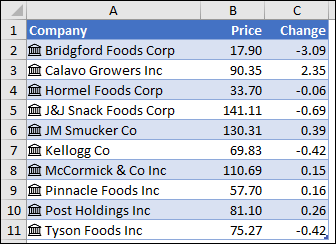
In this example, cell B2 contains the formula =A2.Price and cell C2 contains the formula =A2.Change. When the records are in a table, you can use the column names in the formula. In this case, cell B2 would contain the formula =[@Company].Price and C2 would contain =[@Company].Change.
Note
The Stocks and Geography data types are only available to Worldwide Multi-Tenant clients (standard Microsoft 365 accounts).
Tip
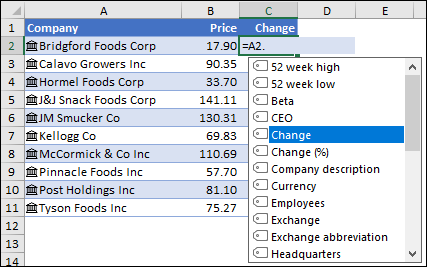
As soon as you type a reference to another cell, for example: =A2, Excel presents a formula Use Formula AutoComplete that lists fields that you can reference for that data type. Select the field you want from the list, or type it if you know it. You can also get the list of fields by typing the "dot" operator, for example: =A2.
-
Data type field references aren't case sensitive, so you can enter =A2.Price, or =A2.price.
If you select a field that has spaces in the name, Excel automatically adds brackets ([ ]) around the field name. For example: =A2.[52 Week High]
You can also use the FIELDVALUE function, but use it only for creating conditional calculations based on linked data types.
Need more help?
You can always ask an expert in the Excel Tech Community or get support in Communities.