

This article lists the commonly found causes of the #VALUE! error when working with DAYS.
Problem: The arguments don't refer to a valid date
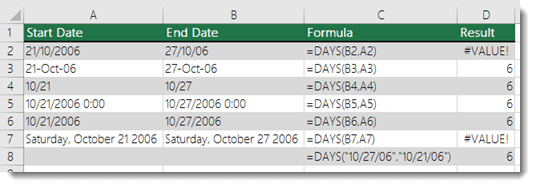
If your arguments contain dates stored as text, such as June 22 2000, Excel can't interpret the value as a valid date and returns a #VALUE! error.
Note
The function can accept some text-based date formats, such as 21-Oct-2006, which might not result in a #VALUE! error.
Solution: Change the value to a valid date, such as 06/22/2000, and test the formula again.
Problem: Your system date and time settings aren't in sync with the dates in the cells.
If your system uses one date format, such as mm/dd/yyyy, and the dates in your worksheet use a different format, such as dd/mm/yyyy, you might receive a #VALUE! error.
Solution: Check your system's regional date settings to ensure they match the format of the dates referred to in the formula. If necessary, update the dates so that Excel can interpret them correctly.
The following example shows different variations of DAYS, where A2 and A7 are invalid dates.
Need more help?
You can always ask an expert in the Excel Tech Community or get support in Communities.
See Also
How to correct a #VALUE! error
Calculate the difference between two dates
How to avoid broken formulas in Excel
Detect formula errors in Excel