

A custom function uses the M formula language, takes a set of input values, and then returns a single output value. If you have logic that you want to reuse many times or apply the same set of transformations to a different query or value, consider creating a custom function and then invoking the function where and when you need it. There are several ways to create a custom function:
- Use the Advanced Editor to add your own let statement and start from scratch.
- Use the Invoke Custom Function command.
- There are additional ways to create functions not discussed in this help topic including the Create Function and Add as a Query commands. For an in-depth discussion, see Understanding Power Query M functions and Using custom functions.
Create and invoke a simple custom function with the Advanced Editor
The following example shows a simple custom function that follows a long-held programming tradition.
Create a blank query:
Excel Select Data > Get Data > From Other Sources > Blank Query.
Power Query Right-click on a blank spot in the Queries pane on the left, and then select New Query > Other Sources > Blank Query.
In the Queries pane on the left, double-click on the name, and then rename the new blank query to
HelloWorld.Select the new query and then select Home > Advanced Editor.
Replace the template starter code with the following code:
let
HelloWorld = () => ("Hello World")
in
HelloWorldSelect Done.
You changed the query,
HelloWorld, to a custom function. Note the function icon to the left of it.
To invoke the function, select it, and then select Invoke in Data Preview.
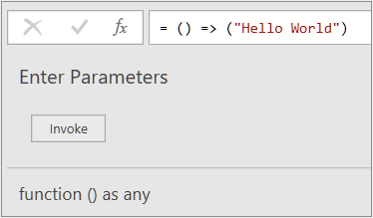
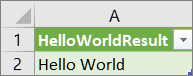
The results of the function appear in Data Preview and are added to the Queries pane as a query with the default name, Invoked Function. You might want to rename it to something more meaningful, such as
HelloWorldResult.Select that query, and then select Home > Close & Load to see the results in a worksheet.
Results
Create and invoke a custom function that has a parameter with the Advanced Editor
The following example shows how to pass a parameter to a custom function to convert a decimal number to hexadecimal.
Create a blank query:
Excel Select Data > Get Data > From Other Sources > Blank Query.
Power Query Right-click on a blank spot in the Queries pane on the left, and then select New Query > Other Sources > Blank Query.
In the Queries pane on the left, rename the new blank query to
MyHex.Select the new query and then select Home > Advanced Editor.
Replace the template starter code with the following code:
let
MyHex = (parameter1) => Number.ToText(parameter1,"X")
in
MyHexSelect Done.
You changed the query,
MyHex, to a custom function. Note the function icon
to the left of it.To invoke the function, select it. In Data Preview, enter a number in the parameter1 box, and select Invoke.
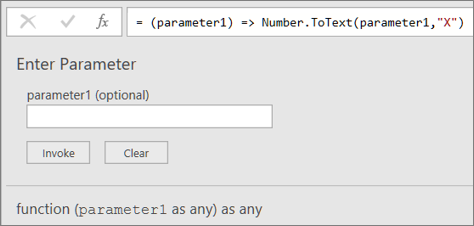
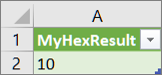
The results of the function appear in Data Preview. Power Query adds the results to the Queries pane as a query with the default name, Invoked Function. You might want to rename it to something more meaningful, such as
MyHexResult.Select that query, and then select Home > Close & Load to see the results in a worksheet.
Results
Add a column by invoking a custom function
If you create a function with at least one parameter, you can invoke it as a custom function to create a new column and a new value for each row in a table.
To open a query, locate one previously loaded from the Power Query Editor, select a cell in the data, and then select Query > Edit. For more information, see Create, edit, and load a query in Excel (Power Query).
Note
For this example, your query needs at least one column of a Whole Number data type.
Create the
MyHexcustom function as explained in the section, Create and invoke a custom function that has a parameter with the Advanced Editor.In the query, select Add Column > Invoke Custom Function. The Invoke Custom Function dialog box appears.
Enter the new column name, such as
HexConvert, in the New column name box.Select the name of a pre-defined custom function from the Function query dropdown. In this example, select
MyHex.Because the custom function references a parameter, the parameter is now displayed.
Select a column of a Whole Number data type as a parameter to the function.
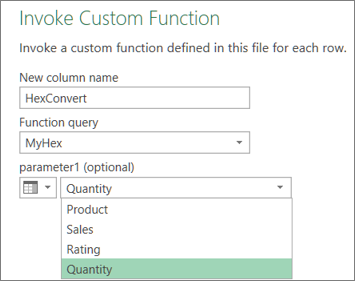
Select OK.
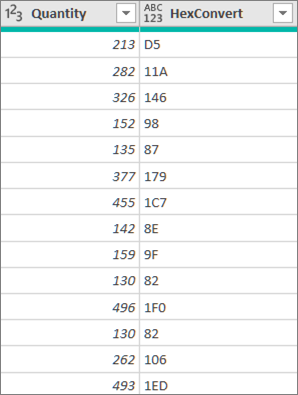
Result
A new column is created that shows the hexadecimal value of the Whole Number column you entered as a parameter.
See also
Create a parameter query (Power Query)