
In Power Query, you can add a new column by providing one or more sample values to help create it. You can do this from a current selection or by providing input based on selected columns. This feature is useful when you know the result you want in your new column, but you're not sure which transformations to use.
The following examples use web data at this location: List of states and territories of the United States.
Add a column from all columns
The following steps are based on the video.
To open a query, locate one previously loaded from the Power Query Editor, select a cell in the data, and then select Query > Edit. For more information, see Create, load, or edit a query in Excel (Power Query).
Select Add Column > Column From Examples > From All Columns.
The Add Columns From Examples pane appears with a new, blank column on the right.
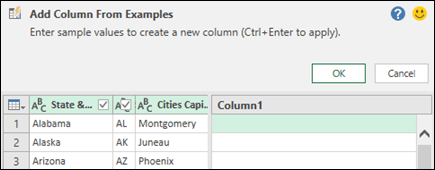
Enter a sample value for the new column data you want, and then press Ctrl + Enter. In this case, we entered "Montgomery, AL" to combine each capital with its respective state.
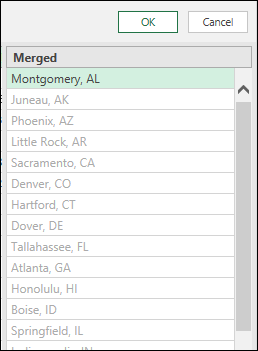
To make edits to the new column, double-click any text field, edit it, and then press Ctrl + Enter when done.
The transformation steps appear above Data Preview.

Select OK.
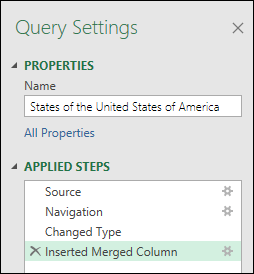
Examine the step added to the Applied Steps section in the Query Settings pane by right-clicking the Step and selecting Edit Settings and the corresponding formula in the formula bar.
Add a column from selection
When you add a column from examples by selection, Power Query shows a list of available fields, values, and suggested transformations for the selected columns. In this example, create a new column to organize the states by how many representatives each state has.
To open a query, locate one previously loaded from the Power Query Editor, select a cell in the data, and then select Query > Edit. For more information, see Create, load, or edit a query in Excel (Power Query).
To make it more convenient, move the column you want to use as the basis for the new column to the end by selecting Transform > Move > To End. In the example, move the Number of Reps column.
Select Add Column > Column From Examples > From Selection. A blank column is added.
Enter "1 to 7" as a range in the first blank cell.
To see suggestions for all cells, press Ctrl + Enter.
If you're satisfied, select OK.
Sometimes, you need to iterate a few times to get the results you want.
Results
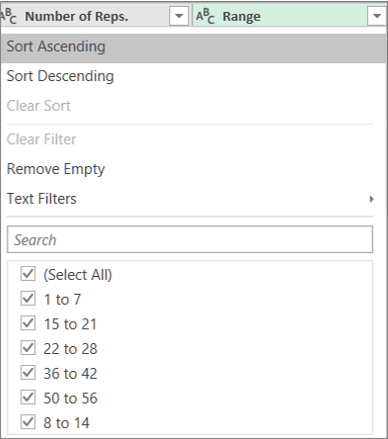
Power Query arranges the data by subsets according to the range you entered. A quick way to see the subsets is to select AutoFilter on the new column. For example:
Additional considerations
After adding columns from examples, consider removing the original columns if you no longer need to display them. The new column data isn't affected.
Adding a column from examples is based on the top 100 rows of Data Preview. Alternatively, you can add your own sample data, add a column example based on that sample data, and then delete the sample data when you no longer need it. The newly created column isn't affected.
See also
Add a custom column (Power Query)